

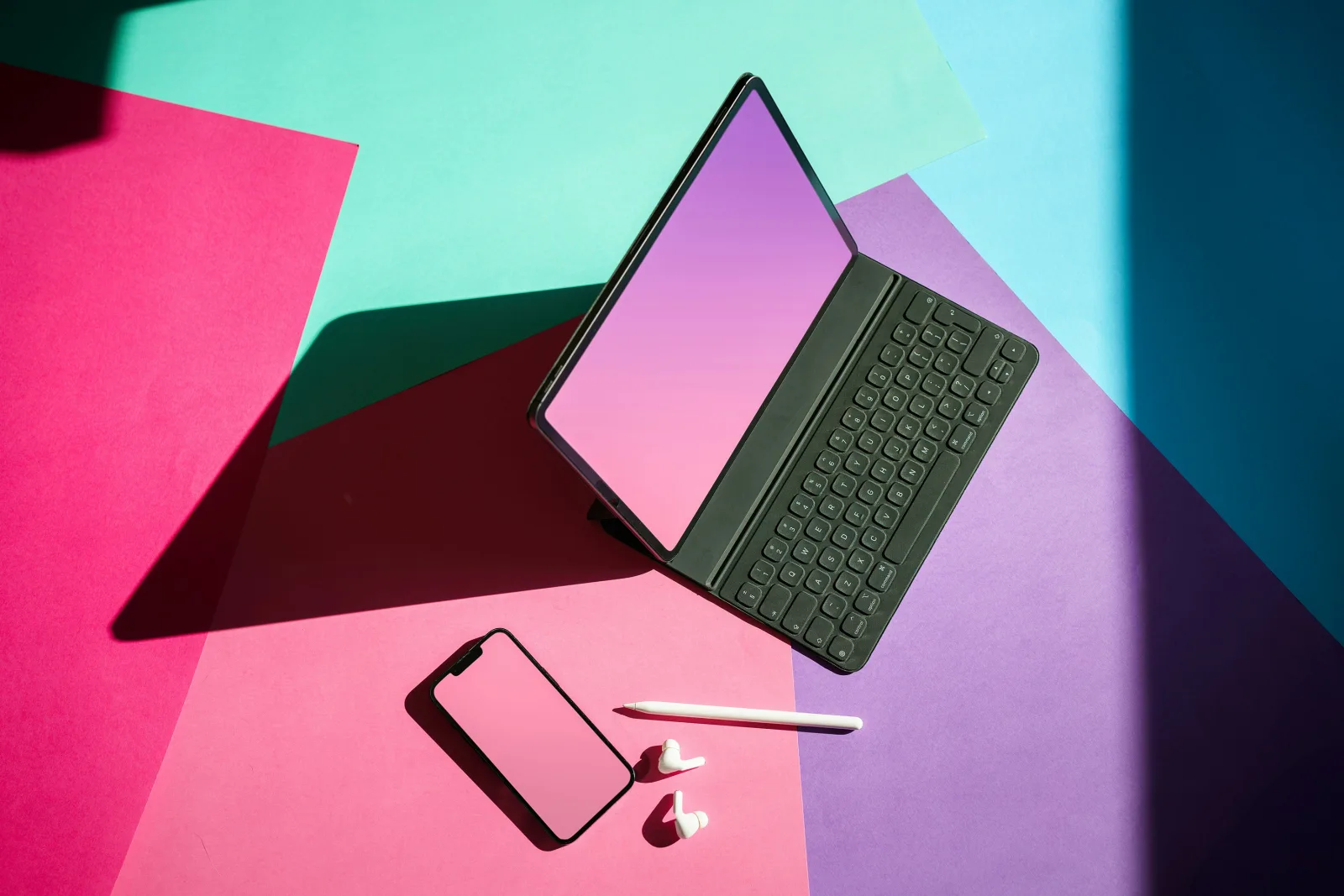
Touch-enabled displays have evolved far beyond basic consumer tablets and point-of-sale terminals. Today, professional touch screen monitors serve as primary interaction hubs for digital artists, architectural designers, audio engineers, and corporate teams. As operating systems like Windows 11 and Linux continue to refine multi-touch gestures and pressure-sensitive pen inputs, choosing the right professional touch display requires a clear understanding of digitizer responsiveness, color accuracy, and hardware ergonomics.
Whether you are building a dual-screen digital illustration station, configuring an interactive control panel for live media production, or upgrading a collaborative meeting space, evaluating hardware specs objectively ensures seamless integration into your existing desktop setup.
1. Digitizer & Panel Technologies: Capacitive vs. Infrared vs. Electromagnetic Resonance
Understanding the underlying technology behind a touch screen is critical, as it dictates precision, latency, and input flexibility.
Projected Capacitive (P-Cap)
Projected Capacitive screens are the standard for modern high-end interactive monitors. They utilize an electrostatic grid beneath the glass cover to detect touch through changes in electrical capacitance.
- Pros: Highly responsive, supports multi-touch up to 10 or 20 simultaneous points, edge-to-edge glass design, and high durability.
- Cons: Higher cost; palm rejection relies heavily on software drivers.
Active & Passive Stylus Integration
For creative professionals, raw touch input is rarely enough. High-end pro touch monitors combine capacitive touch for finger gestures with active digitizer layers (such as Wacom EMR or USI protocols) to deliver pressure sensitivity up to 8,192 levels and tilt detection. This dual-input capability allows artists to navigate canvases with one hand while drawing with sub-millimeter precision with the other.
Optical & Infrared (IR) Touch
Larger interactive displays (typically 55 inches and above used in boardrooms) often rely on IR frames. Infrared emitters and sensors along the bezel detect physical interruptions on the screen surface.
- Pros: Cost-effective for large format panels; works with any object (gloves, styluses, fingers).
- Cons: Larger bezels required; susceptible to ambient light interference or false touches from dust accumulation.
TechnologyBest Use CaseTouch PointsStylus SupportSurface DurabilityP-Cap (Capacitive)Desktop Workstations, Creative Design10–20 PointsActive Stylus (High Precision)Extremely High (Tempered Glass)EMR (Electromagnetic)Digital Art, Graphic DesignFinger + PenBattery-free Active PenHigh (Textured Coatings)Infrared (IR)Conference Rooms, Interactive Signage10–32 PointsPassive Stylus / FingerModerate (Bezel Dependent)
2. Color Accuracy, Surface Coatings, and Resolution Requirements
A display can feature ultra-fast touch response, but if its color accuracy falls short, it cannot serve as a reliable professional monitor.
- Resolution and Pixel Density: For desktop touch monitors (24 to 32 inches), 4K UHD ($3840 \times 2160$) resolution is recommended. Because users sit closer to a touch screen than a traditional monitor, higher pixel density prevents visible pixelation during detailed editing tasks.
- Color Gamut Coverage: Look for displays providing at least 99% sRGB and 95%+ DCI-P3 or Adobe RGB coverage. Factory calibration with a Delta E ($\Delta E < 2$) ensures that colors on screen match final export outputs accurately.
- Anti-Glare vs. Etched Glass: Standard glossy touch screens suffer from heavy reflections and high surface friction (finger drag). Professional-grade touch displays employ etched matte glass or specialized anti-glare coatings. Etched glass provides a subtle tactile texture similar to paper, reducing glares while making stylus strokes feel more natural.
3. Ergonomics, Mounting, and Workstation Setup
Unlike traditional monitors positioned at eye level, a pro touch screen requires physical contact, making ergonomics a central consideration to prevent wrist and neck strain.
[Traditional Monitor] ----> Fixed Vertical Height (Eye Level)
[Pro Touch Display]  ----> Articulating Counterbalanced Arm (15° to 60° Incline)
[User Ergonomics]    ----> Natural Arm Support & Reduced Shoulder Fatigue
Articulating Stands & VESA Mounts
Standard monitor stands rarely work well for touch displays. Opt for monitors featuring heavy-duty z-stands or compatible VESA mounting arms ($100 \times 100\text{ mm}$) capable of supporting screen weight while allowing the display to tilt smoothly from vertical down to a drafting table angle ($15^\circ - 30^\circ$).
Cable Management & Single-Cable Connectivity
Modern pro touch monitors leverage USB-C / Thunderbolt connectivity. A single USB-C cable can carry DisplayPort video signal, high-speed touch data back to the host computer, and supply Power Delivery (PD) up to 85W or 100W to keep a connected laptop charged.
4. Purchasing Checklist: Matching Display Specs to Your Workflow
Before investing in a professional touch screen, evaluate your daily technical demands against these core specifications:
- Digital Illustrators & 3D Animators: Prioritize 4K resolution, active pen support (EMR/AES with 4096+ pressure levels), $98\%+$ DCI-P3 color calibration, and an etched glass surface with an articulating stand.
- Audio Engineers & Video Editors: Focus on multi-touch responsiveness (10-point capacitive), low latency touch processing, wide viewing angles (IPS panel), and multi-input connectivity (HDMI, DisplayPort, USB-C hub).
- Software Developers & UI/UX Designers: Look for crisp text rendering, high contrast ratios, anti-fingerprint coatings, and compatibility across multi-OS setups (macOS, Windows, Linux).
Conclusion
A professional touch screen display bridges the gap between digital software interfaces and natural human touch. By carefully weighing digitizer technology, panel color fidelity, surface finish, and mounting flexibility, creative professionals and power users can choose a display that enhances both ergonomics and daily productivity.
#TouchDisplay #CreativeWorkstation #TechGuide #RuangTekno #DisplayTechnology #DigitalArtTools
Reference Context: Technical specifications, digitizer standards, and display panel metrics derived from VESA industry benchmarks, color accuracy guidelines, and display manufacturer technical documentation.


Komentar 0
Belum ada komentar. Jadilah yang pertama berkomentar!